
Over the past year, Google has introduced a series of AI powered improvements to Google Slides that make deck creation faster and more flexible. Sales teams can now create videos, infographics, and polished visuals on their own without needing outside support.
This frees up your marketing team to do more lead generation and saves your sales staff from having to wait for their decks to be ready. All it takes is some light training, and this guide has most of what they’ll need.
The Basic Building Blocks of a Winning Sales Deck
A good sales deck clearly outlines your value proposition, builds supporting trust with testimonials and/or case studies, and gives a brief background about your company - but the most important element is speaking directly to your client’s pain points. Google Slides and Gemini, Google’s AI solution, can help you do all of this with deep background research and compelling visuals that can be created with a few clicks.
The era of text-heavy slides with dense charts is over. With Google Slides and Gemini, you can create stunning infographics, videos, and images with the click of a button. It also makes it easier to create charts and diagrams, but everything should be simply presented with minimal text.
Remember that you are creating a deck to show, not tell. Where you do need a lot of data to support a point, use a link in your slide to a separate Google Doc or Google Sheets file rather than trying to cram that information into your presentation.
Zendesk has a great example of a sales deck from Snapchat, breaking down how it uses sales psychology. It’s worth a look before you start, and there are many other examples of high-performing decks on Slideshare if you want to see more.
Creating Your Sales Deck With Google Slides and Gemini
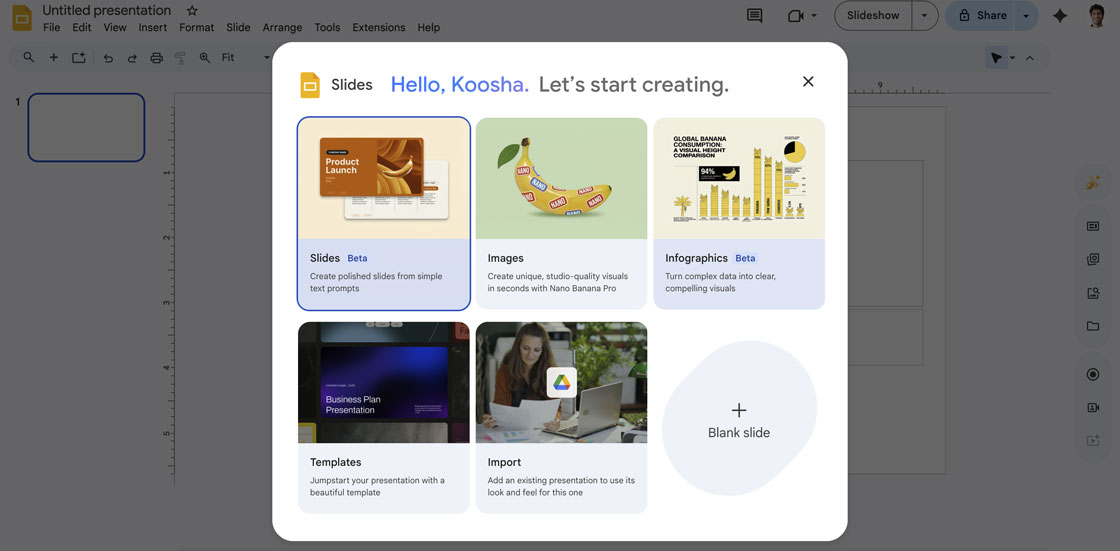
1) Create a Deck to Use as a Template
There are some things that you’ll be using in every deck, and crafting them in advance will save you time. These could include:
- A brief summary of your company
- Unique product/service features (Unique Selling Points, or USPs)
- Competitive comparison
- Testimonials/Case Studies
If you already have these elements in place in a sales deck, you can import it into Google Slides and use Gemini to upscale it. Slides will even use its look and feel to shape your new deck. To access this feature, just click “New” in Google Slides and select “Import” in the pop-up box.
If you are creating from scratch, choose one of the templates that Google Slides offers. Its purpose does not have to be a sales deck, choose the one that is most visually appealing. Gemini can help you refine the look and feel down the road if it doesn’t feel perfect to start.
Company Summary
In the Gemini sidebar, ask Gemini to create a company summary based on your company’s About page on your website. It will give you several bullet points to use. Choose the most relevant and edit them as necessary.
Unique Selling Points
If you don’t already have these, go to the Gemini app (gemini.google.com) and ask it to extract them using your website and anything else you have as source material.
Competitive Comparison
Create an infographic which stacks up your product or service against competitors your client may be looking at. While you can create simple ones from within Google Slides using “Help me Visualize” on the Gemini sidebar, head over to Canvas (https://gemini.google.com/canvas) if you want to create something more complex.
Testimonials & Case Studies
Hopefully, you have testimonials and/or case studies from clients. If you don’t, reach out to any clients you’re close with to ask for them. If you just have short quotes, include them in your presentation, and use Gemini’s “Beautify this slide” to make them look good.
If you have full case studies, consider creating videos from them and inserting them into your presentation. This can be done with Google Vids (vids.google.com). Open Vids, select “AI Avatar”, choose the avatar you want, and then cut and paste relevant words from your case study for the script. Once your video is created, include it in your slide with a URL to the final case study on your website.
2) Use Gemini to Do Client Research
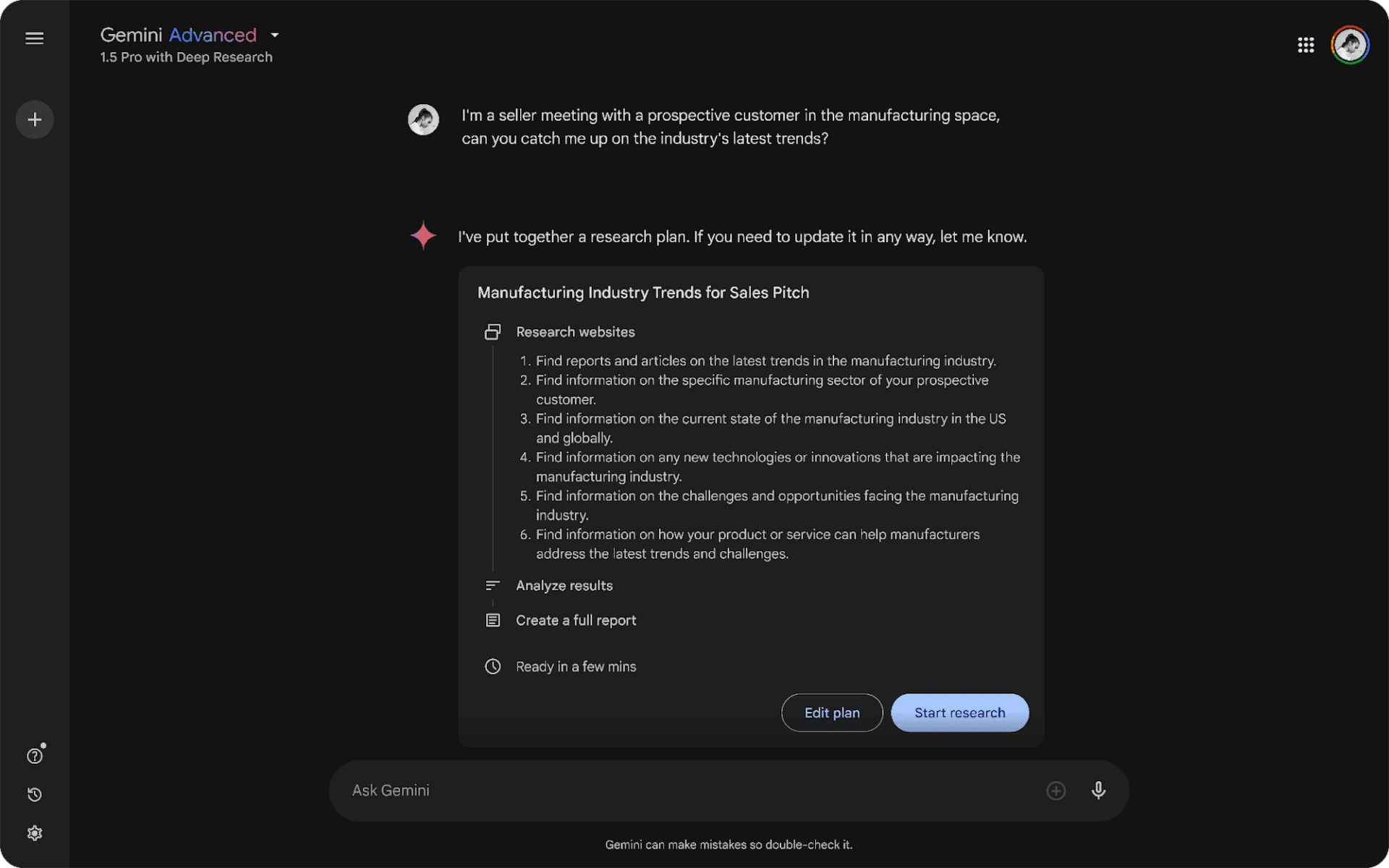
While your client may have already provided you with reasons they are interested in your product or service, you’ll want to do some basic research about their company and their potential pain points. The Gemini app can help. Load it up by going to gemini.google.com and make sure “Thinking” is selected in the text box. Then, create prompts like “Why would X company want to use my product over the competition?” or “What are some problems my product would solve for X company?”
We used “Why would a law firm want to move to Google Workspace from Microsoft Office 365?” and the returned data showed detailed reasons for the switch, including better mobile performance, security, and more advanced AI - all broken down with supporting rationale.
Doing client research with Gemini is a better tactic than using a search engine because Gemini works like a personal assistant, synthesizing all the data in Google’s immense search index and drawing conclusions from it that you can use. As with any AI research, you’ll want to double-check any facts or data it gives you, but this takes far less time than doing client research the old way.
Once you have that information from Gemini, you can craft client-specific slides and fine-tune your presentation to match what they’re looking for. It may even come up with pain points they haven’t even thought of, elevating your presentation beyond what they were initially expecting.
Extra Steps to Fine-Tune Your Presentation
- Create videos from slide decks
You can create videos from older slide decks in Google Vids. When you load it up, you’ll be presented with the option to use a Google Slides file as the basis for your video. Drop in your presentation and edit the video. This is a great way to summarize older text-heavy slides. - Create original images
Don’t waste your time hunting up the perfect stock photo. Use “Help Me Visualize” in the Gemini side panel to create the image you want in seconds. - Ask Gemini for Feedback
Once your deck is done, upload it to Gemini at gemini.google.com by clicking “Add File” and ask it to critique its effectiveness for sales. The gaps it identifies may surprise you.
Once you’ve created your winning sales deck, you can reuse it for each client with small tweaks to the main slide content and new slides to speak to your client’s specific needs. While it may take a few hours to set up the template, you’ll have videos, excellent visuals, and excellent content to build on for those times when you only have a short amount of time to pull something together. Show, don’t tell, is a lot easier when Google gives you the tools to do it.
Even if your organization is using Microsoft for everyday operations, the superior AI capabilities of Google make it the tool of choice to create decks for much less than the cost of a third-party sales deck creation tool. If you’re interested in getting Gemini and Google Slides working for your sales team, get in touch with us today.
Contact Us to Learn More about Transforming Your Business