
Thanks to Google, you can now generate sophisticated data forecasts in Google Sheets. Until today, you may have had to ask a data analyst to crunch multiple datasets in order to make business or sales forecasts. Not anymore. Now, your sales reps, accounting department, or anyone else can do these forecasts on the fly - as long as they’re using a Google Sheet connected to datasets in BigQuery or Looker Studio.
The Techno-Jargon Behind it All
This is all thanks to Connected Sheets for BigQuery, which leverages ML (BQML) and Google's state-of-the-art TimesFM model—a foundation model pre-trained on billions of data points. You don’t have to worry about any of that, just know that it’s the infrastructure that supports the forecasting you can now do yourself in Google Sheets. If you are a data analyst, Google just made your job easier - and may also have killed off the necessity for Excel for a small subset of people.
This is a big deal because before this, you’d need to know complex SQL, use Python, or train your own machine learning models. Now, you just need access to the right datasets and the ability to load them into BigQuery or Looker.
How to Generate Forecasts in Google Sheets
To take advantage of this, you’ll need to be pulling external datasets from either Looker or BigQuery. A dataset can come from your accounting software, inventory software, CRM, or anything else. This is where it gets a bit difficult, but this backend work will support your forecasts.
1)Add Data to BigQuery or Looker
If you’re working with large datasets, follow these instructions to load them into BigQuery. If you’re working with smaller datasets, here’s how to load them into Looker. There’s much more that can be said here, but prior to this new feature being rolled out, Looker Studio was generally what you would use to analyze BigQuery data to create complex forecasts.
You can still continue doing that if that’s what you’re used to, but this Google Sheets feature gives you a faster path to water when you are looking for quick results, and is easier for average people to use than Looker Studio. If you’re unsure of what any of this means, this is where you should call on your IT people to help. They’ll sort you out with the correct datasets and get everything loaded in for you.
Once your data is added, or you already have your data loaded into either tool, create a connected sheet in Google Sheets.
2) Create a Connected Sheet
You can do this manually in any Google Sheet.
Connect to BigQuery
- Open the Data menu.
- Select Data connectors and then click Connect to BigQuery.
- Select a Google Cloud project that has billing enabled.
- Choose the dataset and table you want to use, then click Connect.
Connect to Looker
- Open the Data menu.
- Select Data connectors and then click Connect to Looker.
- Enter the URL of your Looker instance and click Connect.
- Select the Explore or Look you wish to connect to.
3) Create Your Forecast
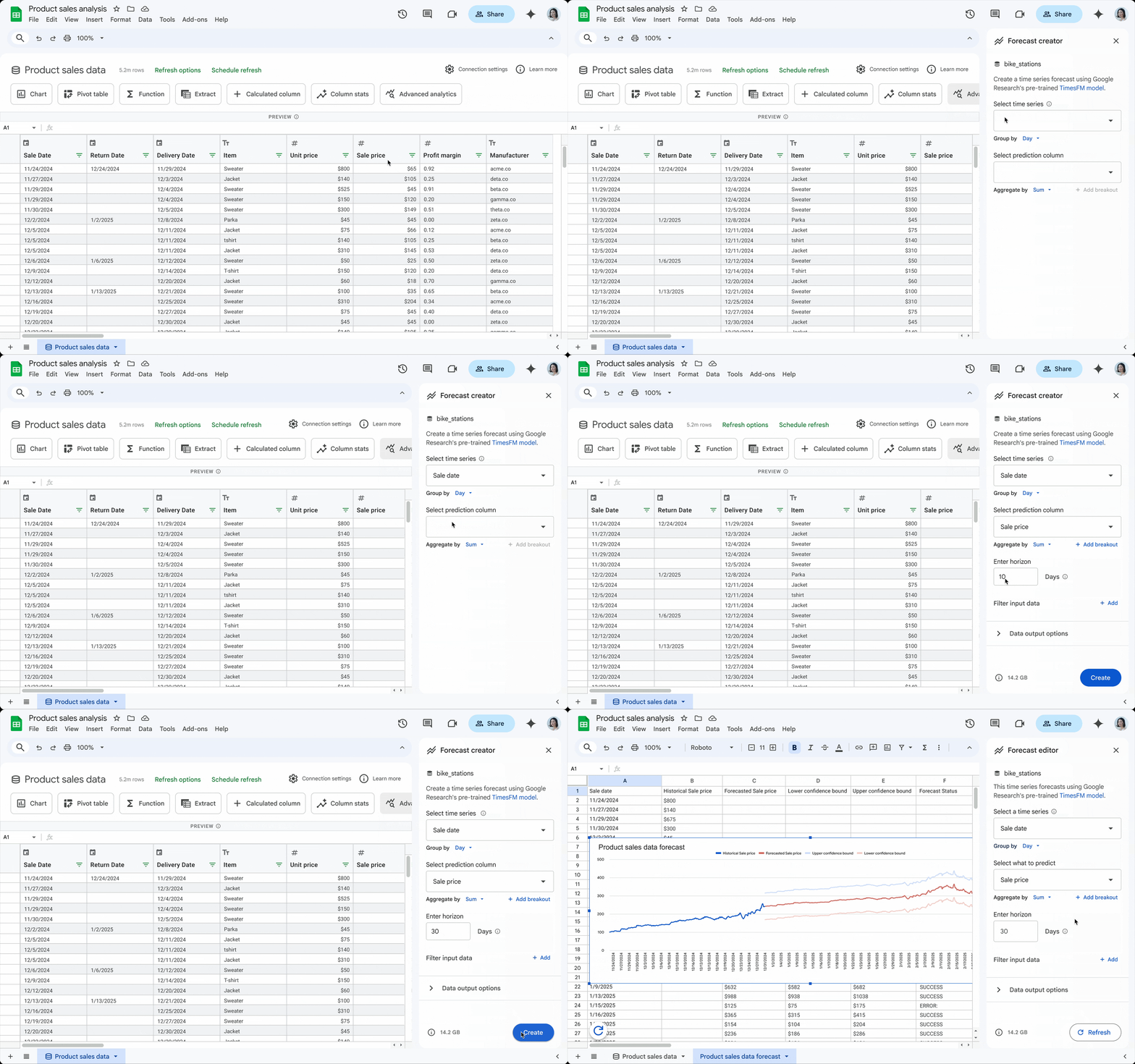
Go to the “Preview” view, click “Advanced Analytics”, and select “Create a Forecast”.
You can customize your forecasts with things like prediction horizons and confidence intervals, run multiple time series forecasts simultaneously for things like regions or product categories, and automatically generate charts to visualize your charts.
Don’t forget to update your datasets regularly in either BigQuery or Looker so that your forecasts are accurate.
This feature is rolling out immediately and is available to all Google Workspace customers.
While this new forecasting is great, it does require that vital dataset setup piece that the average layperson won’t know how to do. If you don’t have ready access to a data analyst, we can help you set it up and get it going - just contact us to get started.
Contact Us to Learn More about Transforming Your Business