
Over the past few years, we’ve started listening to and learning from podcasts and audiobooks. Google has noticed and has introduced significant audio tools to Google Workspace to adapt to our collectively preferred content consumption style. Audio summaries aren’t new to Google Workspace Apps; you’ve been able to get them in NotebookLM for some time. Google has recently introduced them as a feature in an app that more people use every day: Google Docs.
What Can You Use an Audio Summary For?
The audio summaries you’ll get from Google Workspace apps, including the new ones in Google Docs, are meant to be used for things like summarizing a long document or a collection of files. This makes them good for research, catching up on important files before a meeting, and executive summaries.
They’re also useful for reading your words back to you. In Google Docs, you can do this with the “Listen to this tab” command, which reads the words in the document out loud. Sometimes, you can get a better sense of a document’s tone by hearing it read back to you, giving you ideas for edits you’d never get from reading it. This is particularly useful for things like speeches, presentations for clients, and anything else that’s destined to eventually be spoken out loud.
Using Audio Summaries in Google Docs
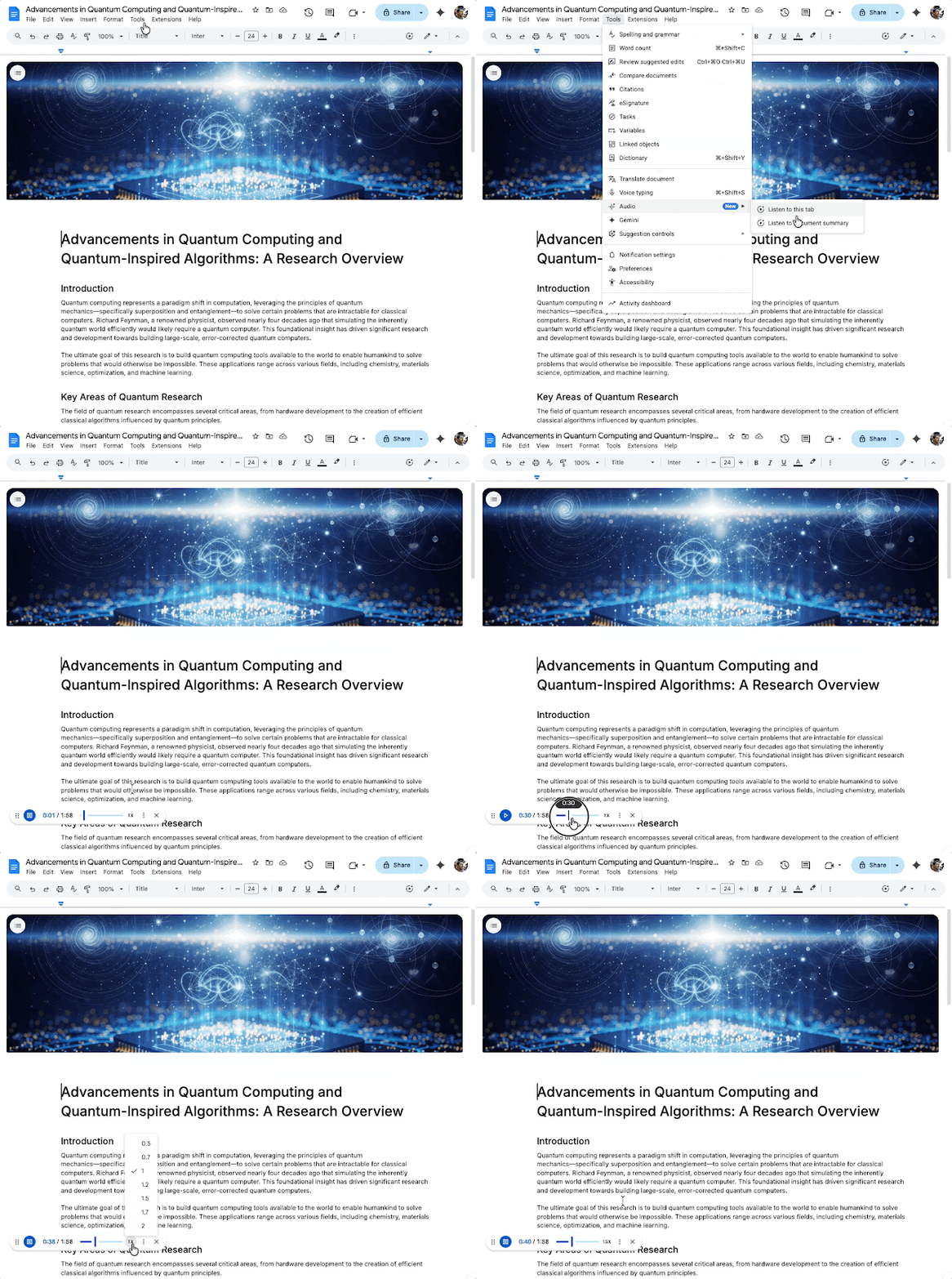
You can either access the new Audio features from the “Tools” or “Gemini” tabs in the Google Docs menu. With the document summary, you can change the voice and speed up the playback time. It offers a high-level overview of your document, usually by paraphrasing a sentence or two from each paragraph, depending on the paragraph’s length.
There isn’t an option yet for exporting them, meaning you may want to install the Google Docs app on your phone if you want to use them to get quick overviews on the way to a meeting or the night before an important presentation.
The “Listen to this tab” works as described above, reading the words in the document out loud. “This tab,” presumably, refers to the browser tab.
If you want more functionality, and an introduction to an under-hyped app in Google Workspace, you can get a richer experience in NotebookLM. You’ll need to use it if you want multiple files summarized, since Google Docs will just do one at a time.
Google NotebookLM Audio Overviews
Google NotebookLM may not get as much attention as Docs, Sheets, or Slides, but it is indispensable to anyone in a research role, or even if you just need a quick executive summary of a subject that has multiple files.
To create an audio summary, open NotebookLM by visiting https://notebooklm.google.com/ and create a new Notebook. Then, add the files that you want to summarize. They can be PDFs, docs, or even websites. Once you’ve added all your sources, select “Audio Overviews” on the top right-hand corner. You’ll then get the following selections to customize your overview.
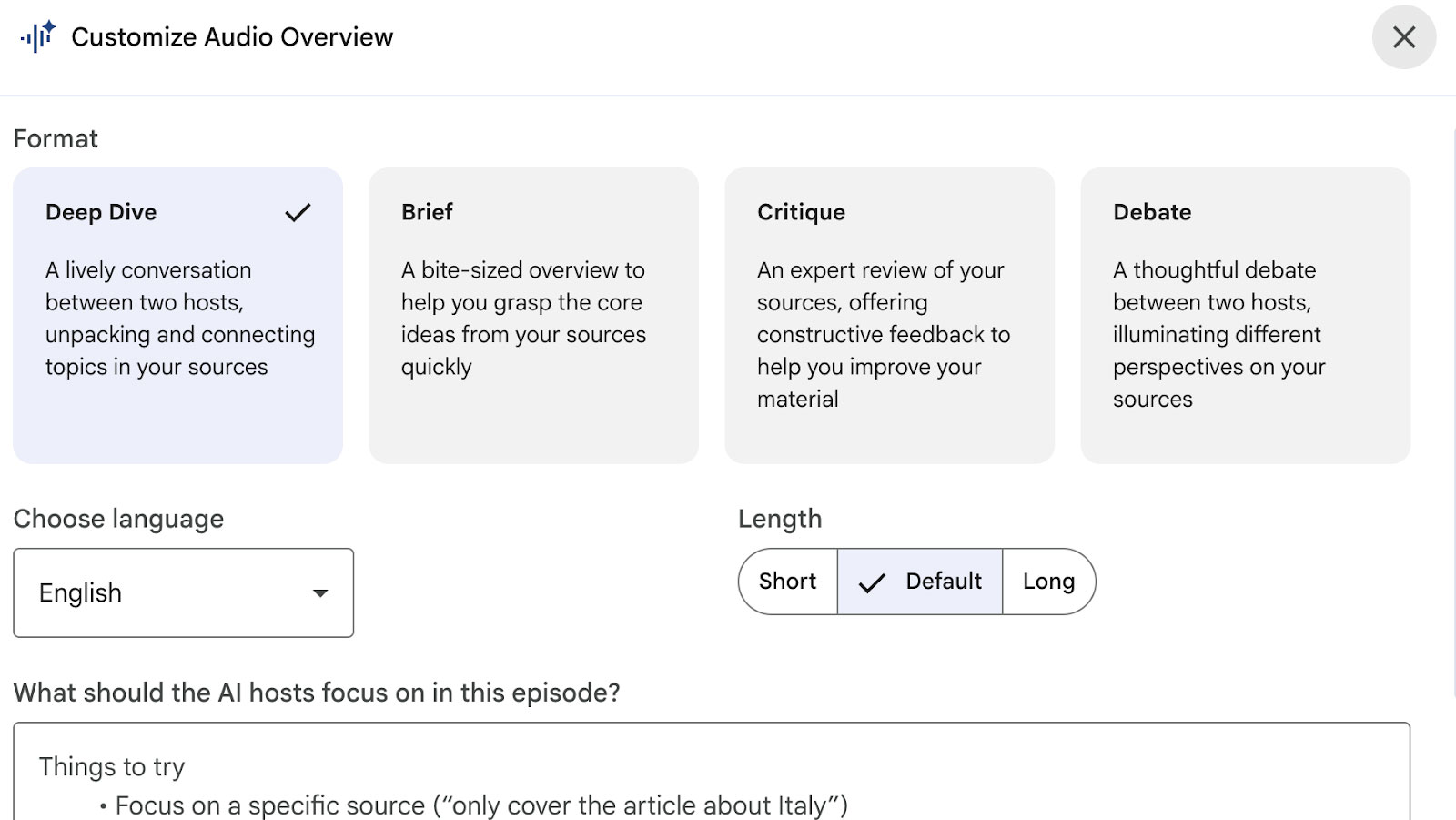
Once you make your selections and have created your own personal AI podcast, you can download it or share it.
This isn’t even the most useful feature of NotebookLM, and nearly every Google Workspace business account type has access to the Pro version of the tool. You can create videos, infographics, executive summaries - NotebookLM is almost a more visual and more organized version of the Gemini app.
If you want a really quick overview of one document or want to have it read back to you for review, choose Google Docs. If you want a podcast-style audio overview of one or multiple files, choose NotebookLM.
If you’ve been on the fence about Google Workspace, ask yourself this: will your current productivity suite create a podcast for you from specific source material? No? Get in touch with us today to put the power of Gemini in the hands of your workforce. As a Google Partner, we’ve migrated businesses just like yours to Google Workspace. Contact us today for a demonstration.
Contact Us to Learn More about Transforming Your Business