
Gemini, Google’s AI model, is extremely good at automating formatting, creating content, and creating images both in the Gemini app (accessed at gemini.google.com) or in your everyday apps like Docs, Sheets, and Slides. However, after using it for a while, you may wonder why you have to keep giving it the same instructions if you’ve performed a task a number of times.
For example, if you are using it to create social media posts, you may find yourself having to ask for no bold formatting, no headline, and to paste the URL at the end rather than having a link over the text - all to make it easy to just copy and paste into your social media management tool. With one simple step, you can automate all of those instructions with a Gem.
A Gem is a container for all of your detailed instructions, and all you have to do is call it in the Gemini side panel from any Google app to get the results you want. Think of them as a way to train your own personal iteration of Gemini to do what you want.
Creating Your New Gem
You can create your Gem two ways:
1) Gem Creation from within the Gemini app
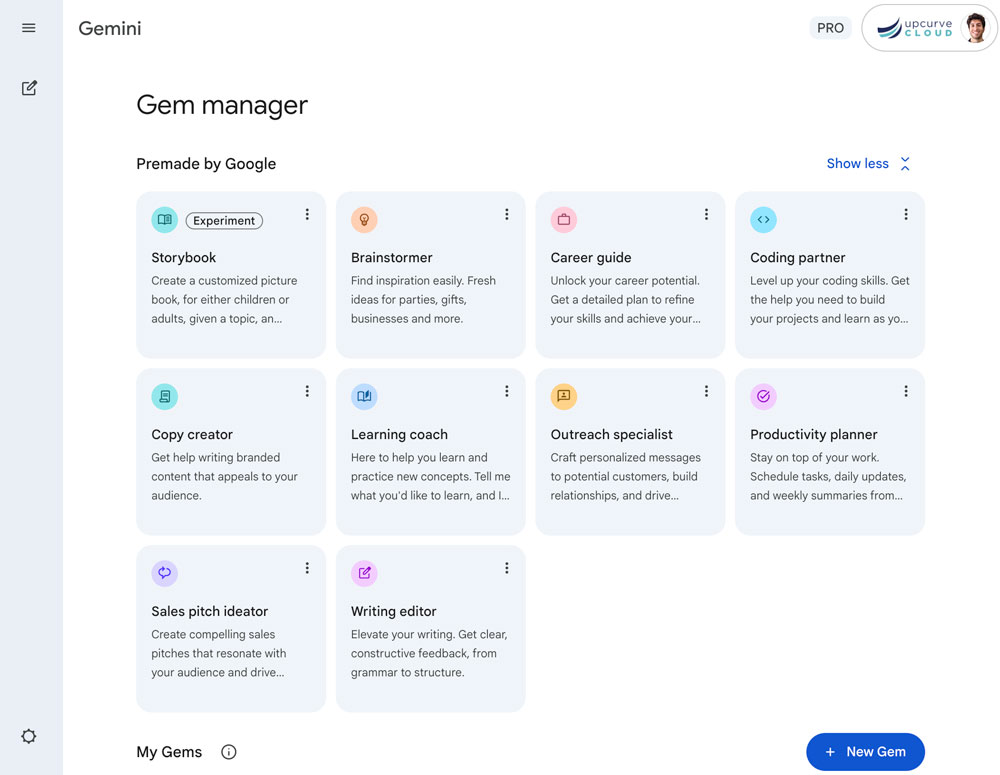
This way is probably the easiest. Go to gemini.google.com and click Gems on the side panel. You’ll then be presented with the Gem Manager, where you can choose to use an already existing Gem as a template for your new one, or create an entirely new one.
2) Gem Creation from a Google Workspace app
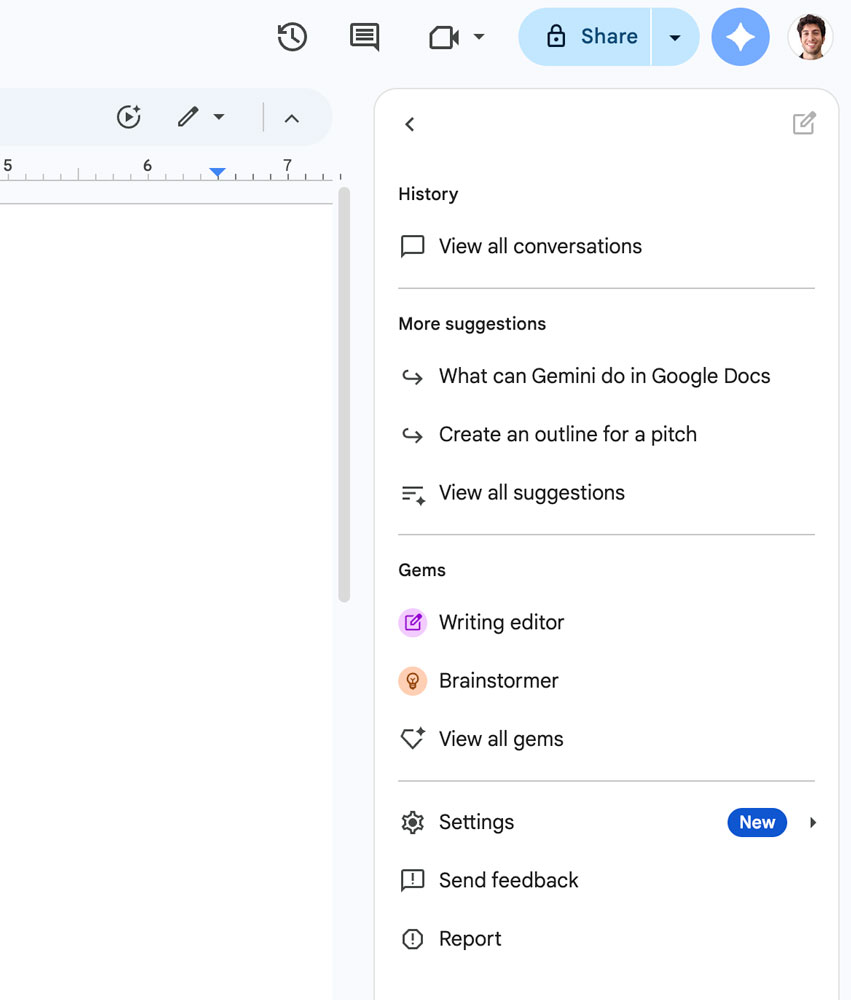
Don’t want to lose your train of thought? No problem! Just pop open the Gemini menu on the side, click on the hamburger menu (three stacked lines) at its top left, and click “View all gems.” Click “Create a Gem” and you’ll be asked to open Gemini in a new tab. You’ll end up in the same spot as you would have in Step 1. Once you’ve created your gem, you may need to refresh your Google Doc, Sheet, or Slide to be able to call on it in your Gemini side panel.
How to Use Your Gems
When you pop open your Gemini side panel from any Google Workspace app, click on the hamburger menu at its top left to see your Gems. Choose the one you’ve created and add your instructions to get started.
For example, if you’ve created a “Social Media Post” Gem where you’ve specified the Gem to create a social media post without bold formatting, no links over text, and no more than 200 words, you just click on it and add the URL that you want to use to create your social media post. It will then create it according to the specifications of your Gem.
Want to add to or change your Gem? Just open gemini.google.com, click on your Gem, and click “edit.”
Work With More Advanced AI Agents With Google Workspace Studio
Gems are good for small, repeatable tasks. If you want to do something larger, like generate a weekly report that is emailed to a number of clients, you can use Google Workspace Studio to create your own AI agents. Now widely available to all paid Google Workspace users, this powerful tool lets you create agents that can interact with other solutions like Slack, Asana, Jira, Mailchimp, and Salesforce.
You can get started with existing templates that let you do things like get pre-briefs for a meeting in Google Chat, pick out emails with action items, automatically add attachments from Google Drive, and so much more. Just visit studio.workspace.google.com to get started.
Are you ready to switch to the solution that comes with built-in agentic AI that everyone can use? Contact us today to talk about migrating to Google Workspace. If you’re looking for more AI capabilities, Google AI Pro and Ultra will help your employees do more, like more AI-generated videos and advanced coding capabilities. Get in touch today!
Contact Us to Learn More about Transforming Your Business