
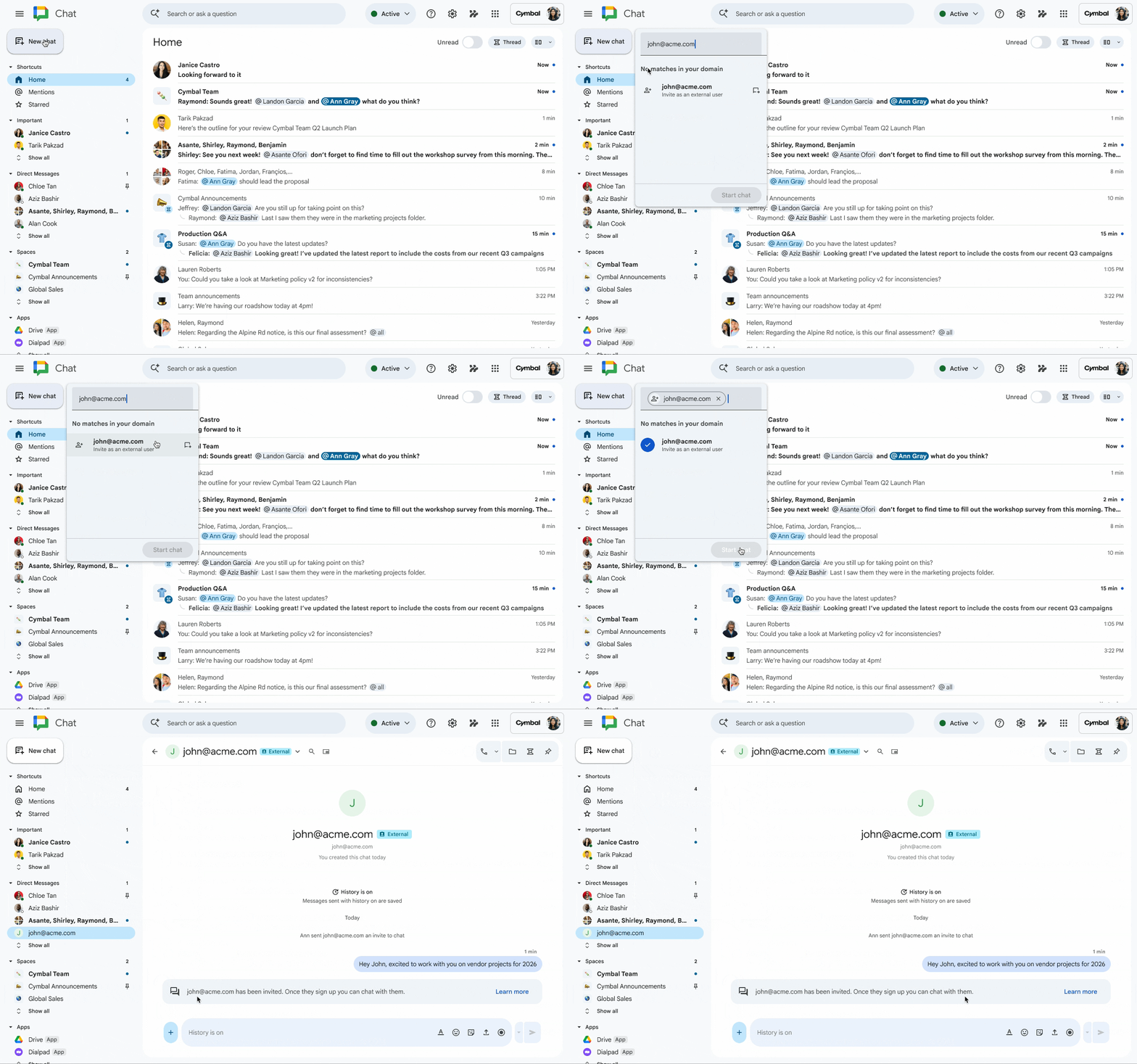
Google has introduced a big update in secure collaboration, allowing external users to securely access and work on files in Google Chat. This update enables organizations to share Google Docs, Sheets, and Slides with clients and other key stakeholders that aren’t a part of your company. Your staff just needs to invite anyone they like with a DM through Google Chat and a guest account is automatically created. From there, projects can be collaborated on entirely through Google Chat, taking email out of the equation.
Up until now, the best practice was to share files with external users by providing them with share access through their email address. While this is effective, it is less secure on a long-term basis and fills up everyone’s email inboxes.
Using the new guest account feature in Google Chat removes the friction associated with the usual filesharing method in Google Workspace, and any employee who is allowed to contact external users with Google Chat can do it. The feature does not need to be switched on by administrators in most cases.
Why You Should Avoid Emailing Files
If you’re collaborating with someone long-term, emailing files rather than sharing a link to the file presents the following issues:
- Makes it impossible to maintain a full, single revision history
- Inaccurate access logs
- Collaborators run a higher risk of working on outdated copies of a document
While sharing a link to a file does avoid these issues, it can lead to the friction points mentioned above with granting access, which is not ideal with long-term collaborators.
Working on "live" files in Google Chat removes these obstacles and provides a more secure environment for both your clients and you. It’s also better than sharing files in third-party apps like Slack, since you’re keeping all of your work in one ecosystem without having to switch over to another app to see what’s happening - you can see all of your Google Chats in Gmail.
Who This Feature Is and Isn’t For
This feature is really only ideal for recipients who also use Gmail. While they can download and use Google Chat to collaborate with your business, they would have to have the app open to receive shares and work with you regularly. If they use Gmail, your Chats with them will always be visible in the left-hand panel on Gmail. You’ll just want to let them know that you want to work this way going forward, and of course they’ll have to agree.
If you’ll be working with the recipient on a long-term basis, and you know they aren’t working in Google Workspace, ask them to download and keep Google Chat open so they can securely share with your business. Good examples of this would be if you regularly use freelancers or if you work in an industry that demands higher file security. This way, you’re assured that anyone regularly accessing your shared files is doing so with a guest account that adheres to your organization’s security policies.
If you’re just sharing a file once, it’s fine to stick with the usual method of sharing the link if your recipient isn’t a Google Workspace user.
What Administrators Need to Know
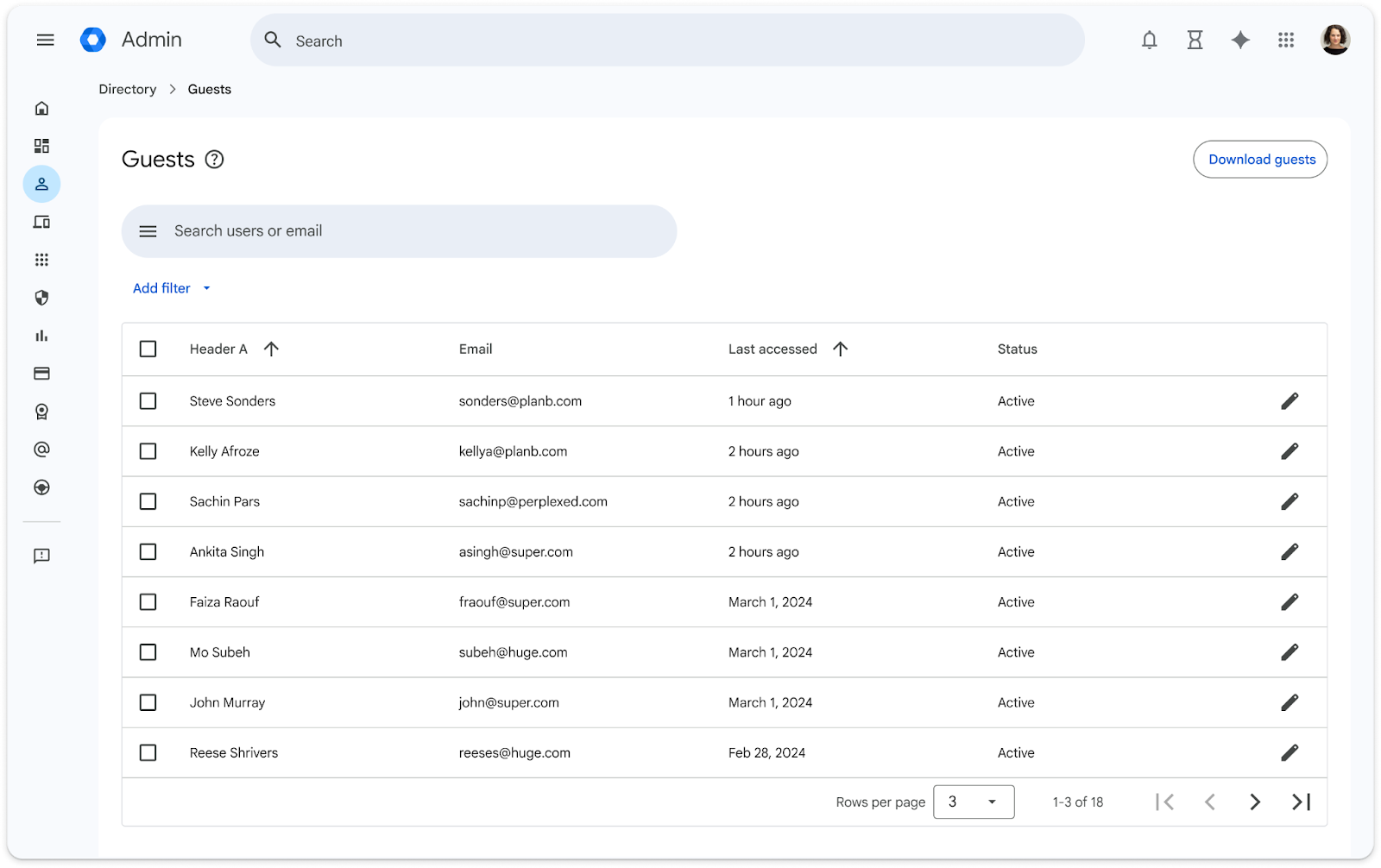
The ability to add users with Google Chat is controlled by your external chat settings. You can granularly control who has the ability to do this. You’ll be able to view all guest accounts in the Workspace Guests organizational unit (OU) and apply any security settings you want to there. Users can only be invited to work on existing files and can’t create or store any files on your Google Drive.
If you need help setting this up, you can contact us to get started and to find out more about using Google Chat to collaborate internally. As a longstanding Google Partner, we’ve helped many organizations creatively deploy Google Chat and set up Chat Spaces for instant, secure collaboration and communication. This is just one of the many useful things you can do with Google Chat.
Contact Us to Learn More about Transforming Your Business