
Google has been rapidly releasing new Google Workspace features powered by its AI platform, Gemini. This month, millions of Google Docs users have seen the results of this upgrade in the form of new Gemini tools which can be accessed not just from the sidebar, but also easily from within a document.
It now does noticeably more when you give it a prompt, returning what you’re looking for with formatting and more helpful information. It can be jarring for those used to working with the Gemini sidebar, but it is more powerful. There’s just a slight learning curve you’ll master with our help.
There are now three areas where you can access Gemini, with some Gemini features also being integrated with various Google Docs menu bars. These three areas are:
1) The Gemini sidebar
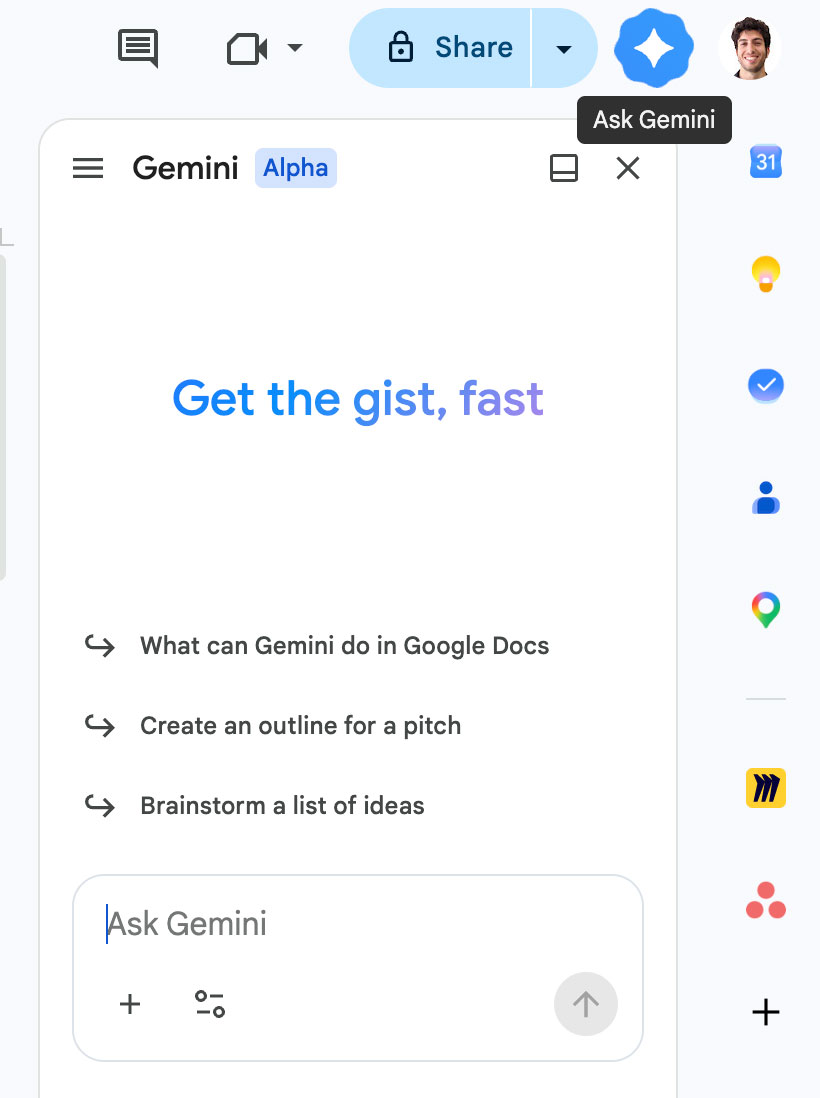
Most users will be most familiar with the Gemini side panel, which is activated when you click the star icon beside your picture at the top right.
2) The Gemini bottom menu
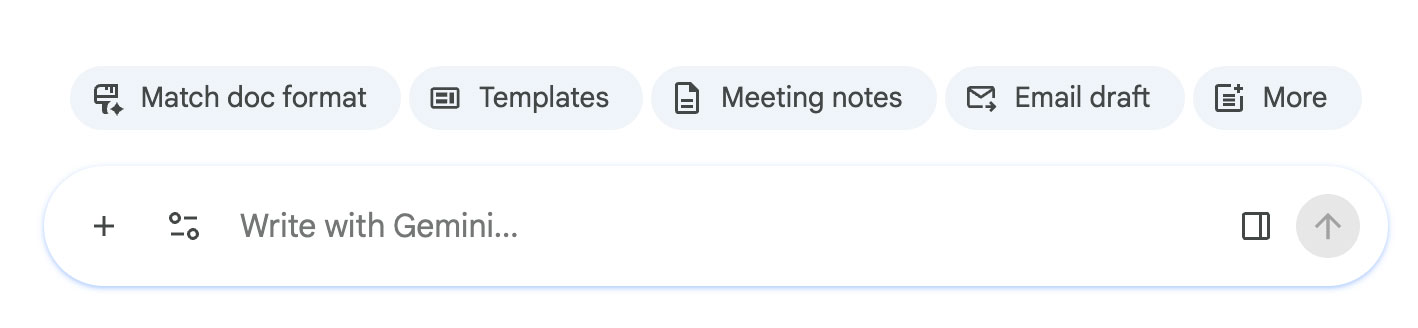
This is new, and is accessible by clicking the same star icon at the middle bottom of your screen. It will be expanded when you create a new document.
3) Gemini menu item

This is also new, and rests between “Tools” and “Extensions” on the Google Docs menu at the top left of your document.
This is a big change for everyone who was just used to working with the sidebar, but it’s a much better experience once you know what you’re doing.
Google Wants You to Change How You Interact With Gemini in Docs
If you enjoyed working in the Gemini sidebar, you can still use it the way that you want. Simply add “display the results here and not in the main document” at the end of your prompts.
The only thing that will change is that you will need to cut and paste any content you have generated in the sidebar rather than having the “Insert” option available, so it’s only really a good idea for short content. This is presumably part of the rationale for the redesign - it’s much easier to review generated content in the main document window than in the sidebar.
The new Gemini experience in Google Docs is centered around the new Gemini bar at the bottom middle of the screen, so you may want to get used to working that way instead. You will notice that the sidebar won’t give you the same detailed results you’re used to, since it is now meant to be a quick reference area rather than your main workspace.
The design is meant to deliver the same simple experience you may be familiar with if you’ve used the Gemini app. We’ll take you through it from start to finish so you can see how useful the new Gemini integration is.
Starting a New Document With the Gemini Bottom Menu Bar & Building Blocks
When you start a new document, you’ll see the Gemini menu expanded at the bottom of your document’s screen.
Once you’ve made your selections from the five choices on top of the main prompt bar and start working on your document, you’ll only see the oval prompt bar when you pop open Gemini from the middle bottom of your screen.
The five choices (Match doc format, Templates, Meeting notes, Email draft, More) are still accessible from other areas once you start working on your document, either through the menu or by using them as prompts. The “More” button brings you to building blocks, a very useful tool that you may not have even known about.
Building Blocks Boosted in Google Docs
Building blocks aren’t new, but they’re now front and center thanks to the new Gemini in-document menu. A building block is a piece of content that you can use across documents. You can use this for anything that uses repeatable content, such as paragraphs that describe your company (such as boilerplates for press releases), campaign messaging, and more. Here are the steps to create one.
They differ from Gems in that they are pieces of content rather than a collection of prompts. Think of them as mini-templates, or a resource library for small pieces of content that you reuse often. You don’t have to use them, but they do make life easier if you routinely have to insert things like disclaimers or campaign messaging into your content workflows.
One of the more useful building blocks is the AI summary, which will automatically update as you make changes to your document. This building block makes for an excellent foundation for an executive summary for longer documents. If you miss creating it when you start your document, go to Insert ->Building Blocks -> AI Summary to add it to your file.
Solving the Blank Page Problem With Help Me Create and Help Me Write
Now, instead of just using the sources you give it, you can ask Gemini to create something and it will draw from across your entire Google Workspace to give your file the appropriate context. It will also automatically apply formatting and smart chips to reference where it is pulling information from.
This makes for a better first draft, finding sources that you may not even know you had. If you only want it to use a single source, such as a web page or one file, you can specify that in your prompt.
Once you’ve created your file and are satisfied with the formatting and sources, you can use Help Me Write to refine by adding additional sources and context. You can also adjust the tone, making it more formal, more authentic, more conversational - anything you want.
If you’re working with multiple collaborators, a document can read as disjointed. Just prompt Gemini to match writing style and it will unify the tone throughout to create a coherent message. You can also ask Gemini to create images to bring your concepts to life.
Go Beyond Docs With the Gemini App
If you want to do more advanced things like creating complex images or videos, you’ll want to use the Gemini app rather than trying to do everything in Docs. You can access it at gemini.google.com. Content that you generate from the app can still be cut and pasted into Docs or downloaded.
With this upgrade, Google Workspace has really put the power of AI into everyone’s hands. Now everyone can create with confidence, from a CEO to a frontline employee. Google has gone far beyond what the competition can offer by AI-enabling document creation, editing, revision and collaboration.
Now is the time to switch to put this power in the hands of your employees. Google’s constant innovation and superior security makes Google Workspace the right choice, but businesses can be hesitant to switch because of the work that has to be done to migrate solutions. That’s where we come in. As a trusted Google Partner, we can help your business make the switch without any churn, data loss, or anything else that you’re afraid of. Contact us today to get started.
Contact Us to Learn More about Transforming Your Business