
NotebookLM has long been a favorite for researchers who need to synthesize complex information from multiple files. However, with the integration of Google’s latest visual models, it has evolved from just being a research assistant into a powerful engine for slide deck generation, infographic creation, and much more.
What this means for business users is that they now have a way to generate a slide deck on the fly if they have multiple documents or files to build it from. If you haven’t tried it yet, you will have access to it as a paid user of Google Workspace.
How to Generate a Slide Deck in NotebookLM
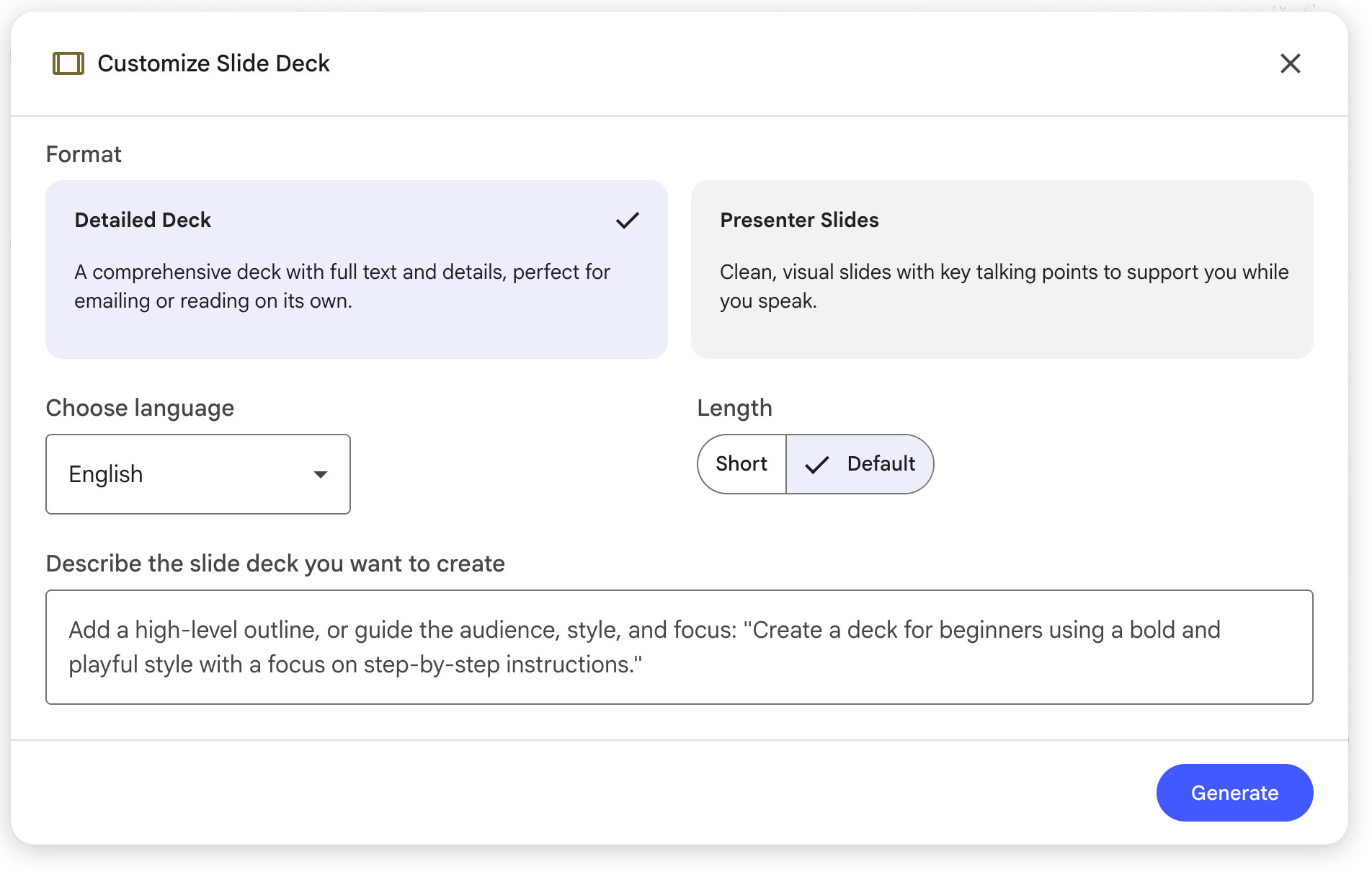
- Go to https://notebooklm.google.com/.
- Click “Create New” at top right of screen
- Upload your source files and documents, or link them from Google Drive.
- Click “Slide Deck” on the right-hand side menu.
- Choose Detailed Deck (for complex presentations) or Presenter Slides (for high-level overviews)
- Click “Generate”.
Once your slide deck is done, you can either quickly tweak it with the limited tools available in NotebookLM, or export it to Google Slides to make more changes.
When to Use NotebookLM

Understand Long Documents and Deep Research Better With a Visual Deck
Dense documents and reports can be tough to dive into for busy people. NotebookLM can bridge this gap by converting "Deep Research" outputs from NotebookLM directly into custom slide decks, or longer documents. It doesn't just copy-paste text; it uncovers metaphors and connections within your data, presenting them in a format that is easy to digest. Simply run your research query or select your files to see your data come to life.
Pull together a last-minute presentation
We’ve all been there: a last-minute presentation is due, and all you have are scattered notes. You can now upload rough drafts, outlines, or even photos of handwritten brainstorms as sources. NotebookLM uses these "streams of consciousness" to build a structured, visually appealing slide deck instantly, saving you hours of manual design work.
If you want to change the look and feel of your presentation, you can apply brand guidelines to it in a prompt, or upload another presentation and ask NotebookLM to match its style. For more advanced editing, export it to Google Slides.
When to Use Google Slides
Google Slides offers much more in the way of formatting and design choices than NotebookLM does. If you’re building a deck from scratch and aren’t using multiple sources for data, you’ll want to use Google Slides. The NotebookLM Slide Deck feature is really only for people who are building decks from multiple sources and who have to do it quickly.
As mentioned above, you can also refine decks created in NotebookLM in Google Slides if you’re not on a deadline and want access to more formatting features for your final deck.
Notebook LM is powered by Google's latest AI advancements, including creative agents that mimic the logic of a human designer. Subscribers to AI Ultra can access even higher limits, allowing for the generation of longer and more complex decks both in NotebookLM and Google Slides.
With Gemini, NotebookLM is no longer just a place to store notes and summarize long documents. It allows you to move from raw information to a polished visual story in a fraction of the time it takes to build a deck in Google Slides.
Want to migrate to Google Workspace to AI-enable your workforce with the best suite of AI tools, including NotebookLM? Contact UpCurve Cloud today for a managed migration that gives you the benefit of Google’s tools and UpCurve’s support.
Contact Us to Learn More about Transforming Your Business