
After a meeting, we usually receive a transcript via email which we never consult or look at again, unless we’re truly lost when it comes to what was discussed in a meeting. Google Meet’s new “Next Steps” feature drafts follow-up emails, exports action items to tasks that end up on your calendar, and more to automate post-meeting admin tasks.
Turn Discussions into Action instantly
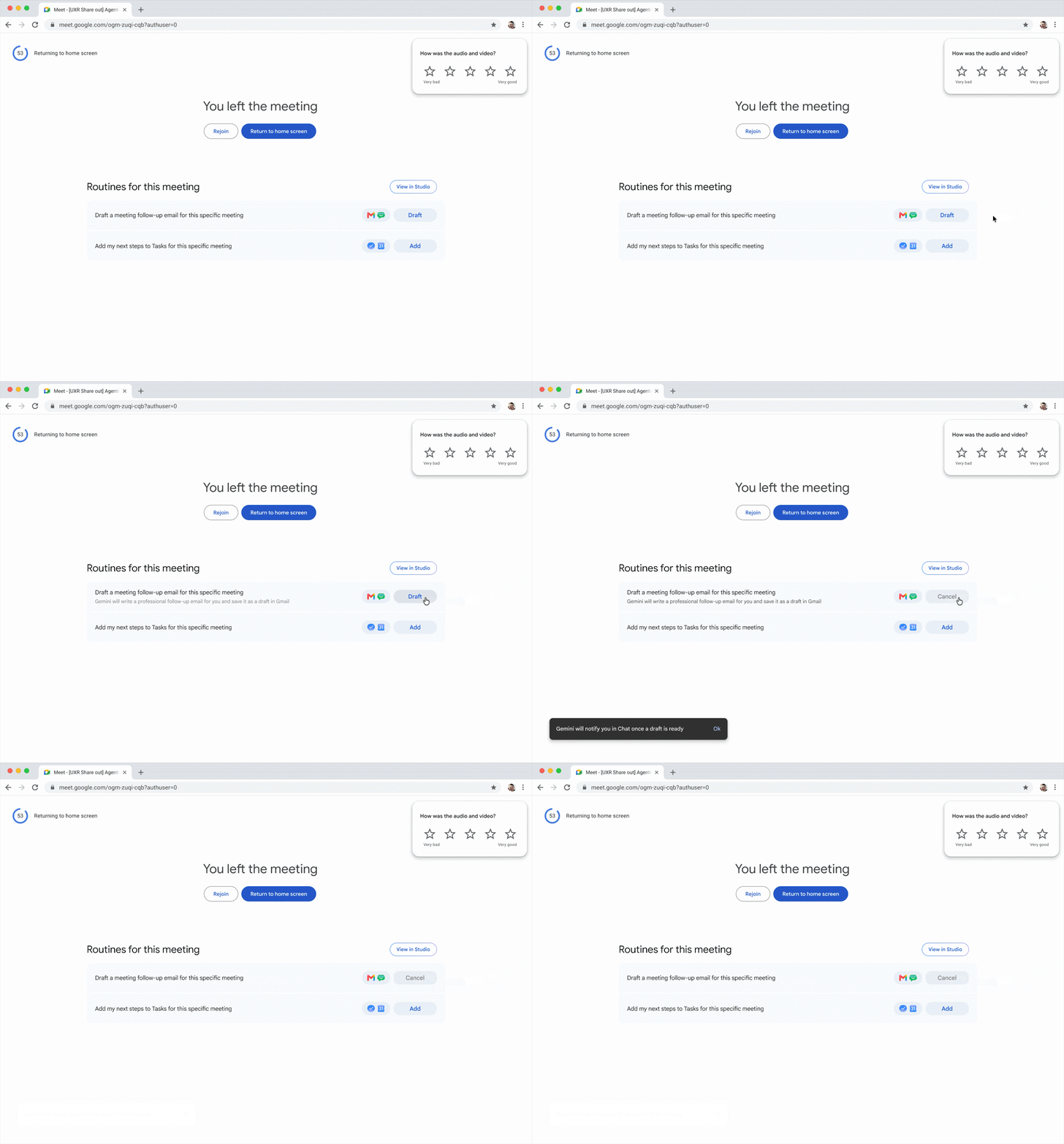
Instead of switching context between your notes app, email, and task manager, Google Meet now serves up automated actions directly on the post-call screen. Under a new section titled "Routines for this meeting," you can enable automated next steps with just one tap.
At launch, Google is starting with two routines:
- Draft a follow-up email
Automatically generate a summary email in Gmail based on the meeting's discussion.
- Export action items to Google Tasks
Instantly push the assigned to-dos from the meeting directly into your Google Tasks.
Google Tasks are added to your calendar at the top of each day’s entry until they are marked as complete. You can also see them at tasks.google.com.
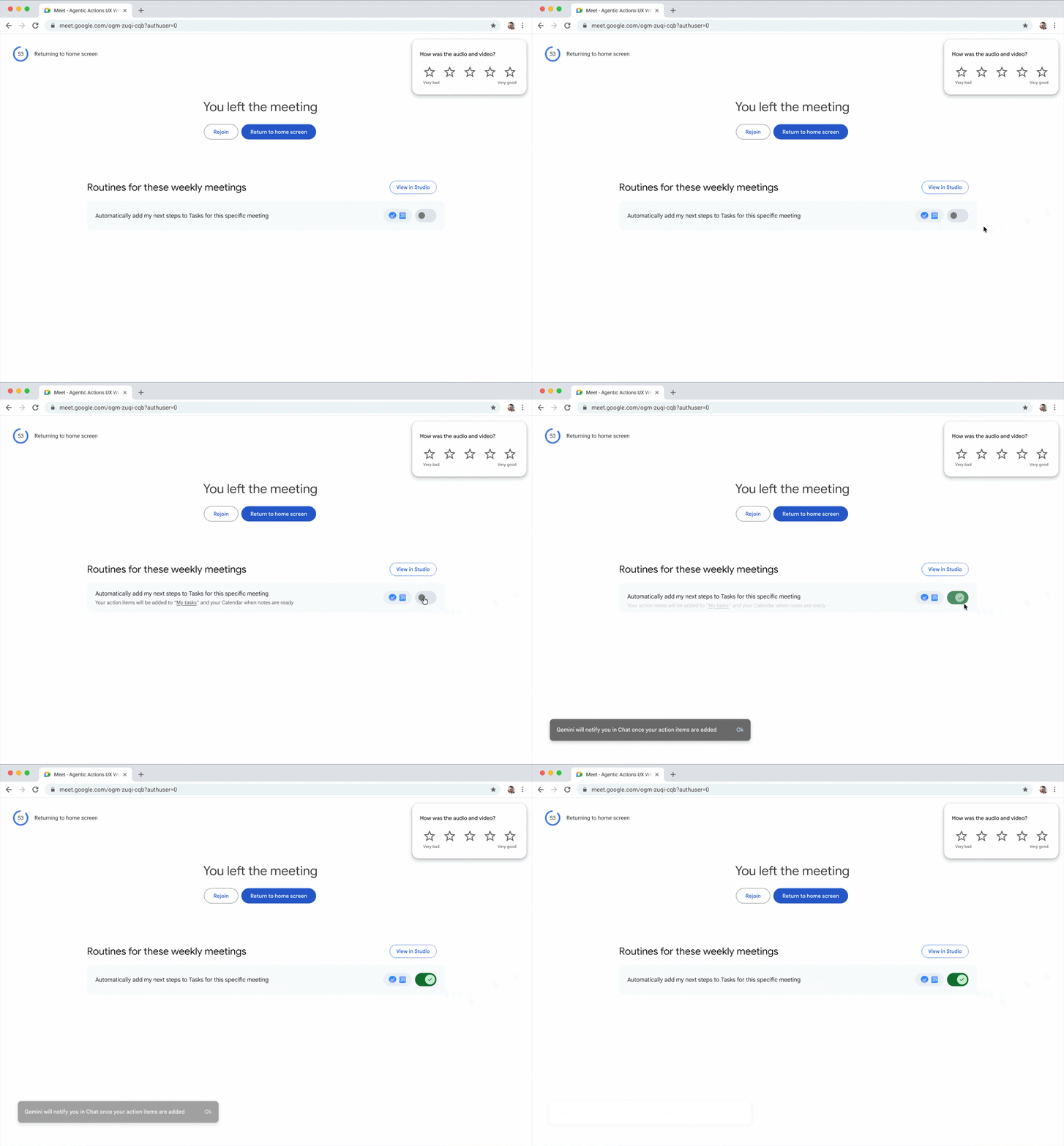 Google has hinted that more functionality is on its way to augment “Next Steps.”
Enabling Next Steps in Google Meet
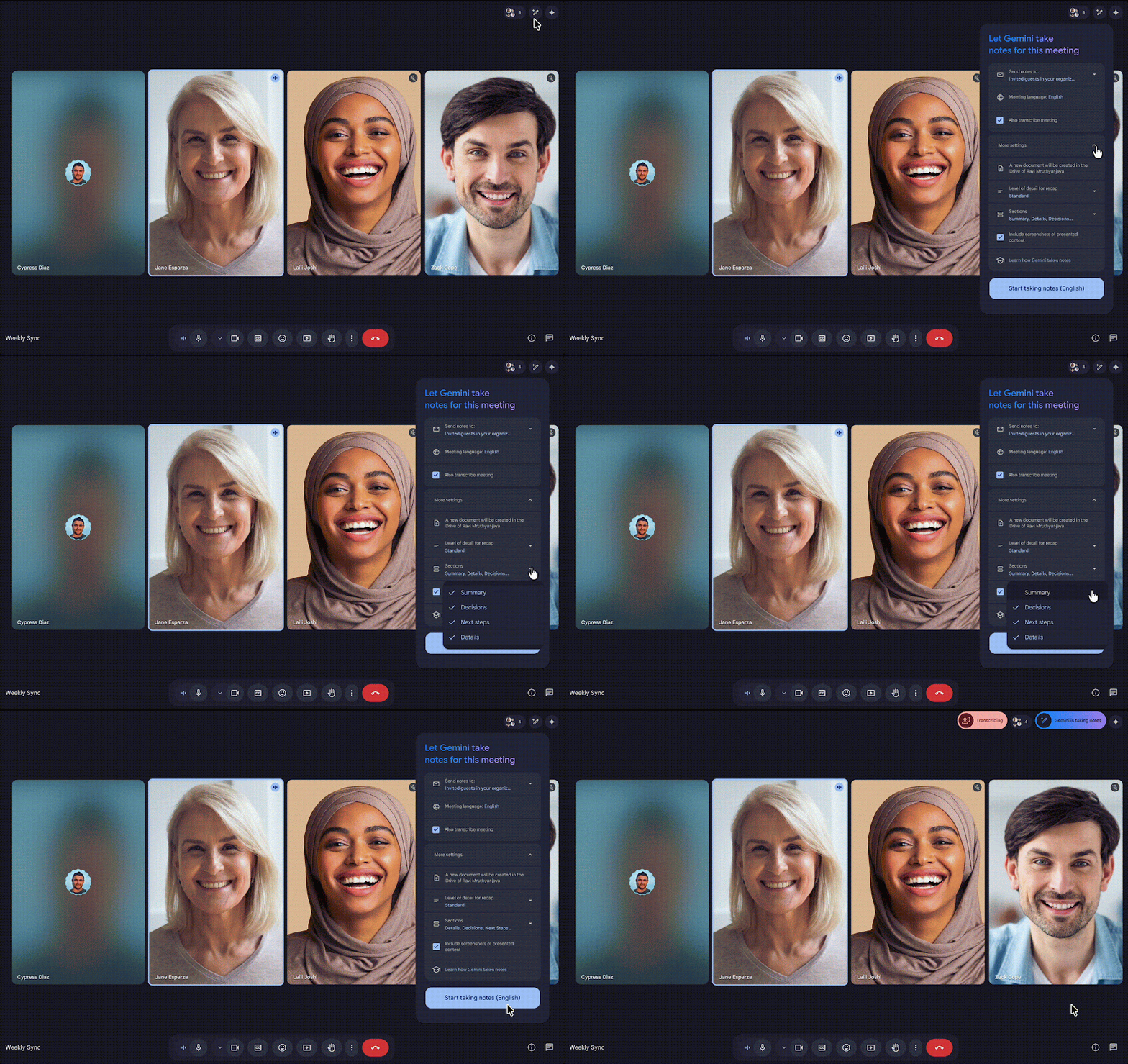
To take advantage of these new next steps, you need to have the "Take notes for me" feature enabled during your meeting. Gemini uses these notes to understand the context and generate your automated email or task list. Here’s how to turn on “Take Notes For Me.”
In addition to enabling Next Steps, Take Notes for Me will send you a transcript of each meeting.
There are a number of other contingencies to make sure it works, but they will make your Google Meet experience much better, so they’re worth doing.
- Make sure smart features in Google Workspace are turned on.
- Make sure Ask Gemini is turned on during your meeting.
- The meeting must be part of a Google Calendar event.
- You need to be on a computer.
For drafting follow-up emails:
- You need to be the meeting host
- The meeting must not be part of a repeating series
- At least one meeting participant needs to be outside of your organization
Next steps works for both ad-hoc syncs and your weekly stand-ups. If you have a specific next step you always want to trigger (like exporting tasks), you can enable it across all your meetings whenever "Take notes for me" is active.
This feature is now available on most business and enterprise Google Workspace editions.
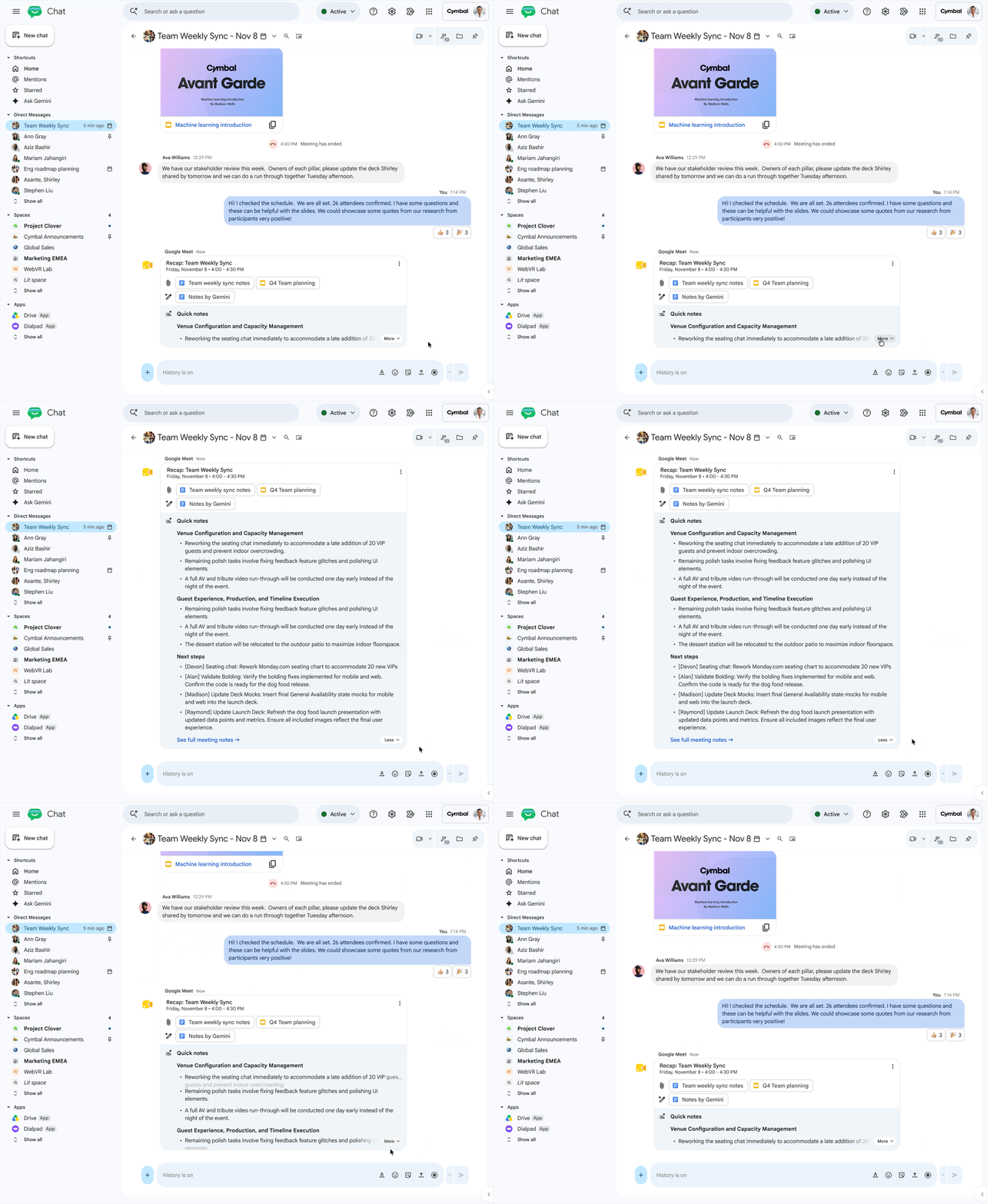
In addition, you can dive into your Google Chat to grab your next steps since the same information will exist there once you’ve enabled “Take Notes for Me” on Google Meet.
Say goodbye to forgetting everything after the meeting is over. The next time you hang up a Google Meet call, let AI do the heavy lifting. If you want to get a better handle on all of the AI features that Google Workspace has to offer, get in touch with us. We can give you a rundown of what you may find useful and let you know if you have to upgrade your plan to get it.
Contact Us to Learn More about Transforming Your Business