
Google has been introducing new image and video editing capabilities at a breakneck pace that’s hard to keep up with. If you want to make sense of which app to use to do what, you’re in the right place.
Gemini’s image and video creation is superior to other AI solutions, and it gives users apps to edit them if needed. This is far more than the other leading productivity suite does, and in and of itself makes for a great reason to switch to save on costs of AI tokens with other services. If you are batch-generating videos and images, Google has enhanced AI plans you can purchase for select users to affordably allow for that.
Apps You’ll be Using
- Gemini app, accessible at gemini.google.com
- Google Vids, accessible at vids.google.com
- Google Pics, accessible at pics.google.com
- Gemini Notebook, accessible at notebook.google.com
- Any Google Workspace app, access simple tools from Gemini sidebar
When to Use Google’s Image & Video Creation and Editing Tools
You should be using Gemini to generate new images and Google Pics to edit them if they need any additional work over and above what you can “edit” using Gemini. If, for example, you need to add a logo, you’ll want to bring your work into Pics to do that.
To keep things simple with videos, it’s easiest to both generate and edit in Google Vids. If you aren’t quite getting the generated result you want, use the Gemini app. If you need to use multiple sources to create a video, it may be best to use Gemini Notebook to create it.
You would only use the Gemini sidebar in Google Workspace apps to quickly illustrate a Doc or a presentation in Slides. For more advanced image and video creation, use the above apps.
If you need to edit specific elements of the image or video, you may need to use a third-party tool. At the rate that Google is improving, this may not be necessary in a year or two.
Working With Logos
If you are working with an image or video with an element that can’t be distorted like a logo, you’ll need to generate your image and then overlay the logo on it in Google Pics or Google Vids. You can either take an image with the “wrong” logo on it and overlay the correct one, or create it from scratch with a prompt to not include any logos, but enough blank space that you can add one.
Google Pics: Change Text, Resize, Crop, and Produce Various Sizes
Google Pics is a basic image editor that can work with any image, not just one you’ve generated with Gemini. You can do nearly anything that you would do at a basic level in a third-party image editor, such as resizing, cropping, and producing various sizes of a graphic or picture.
Google Pics can detect and edit text in most cases, allowing you to create multilingual images or use an existing image as a template for others - for example, webinars. You can go in and change the date, time, and webinar title with Pics. You can then store your webinar template in Drive and give access to anyone who needs it in your department.
Google Vids: Create Explainer Videos for Customer Support and Much More
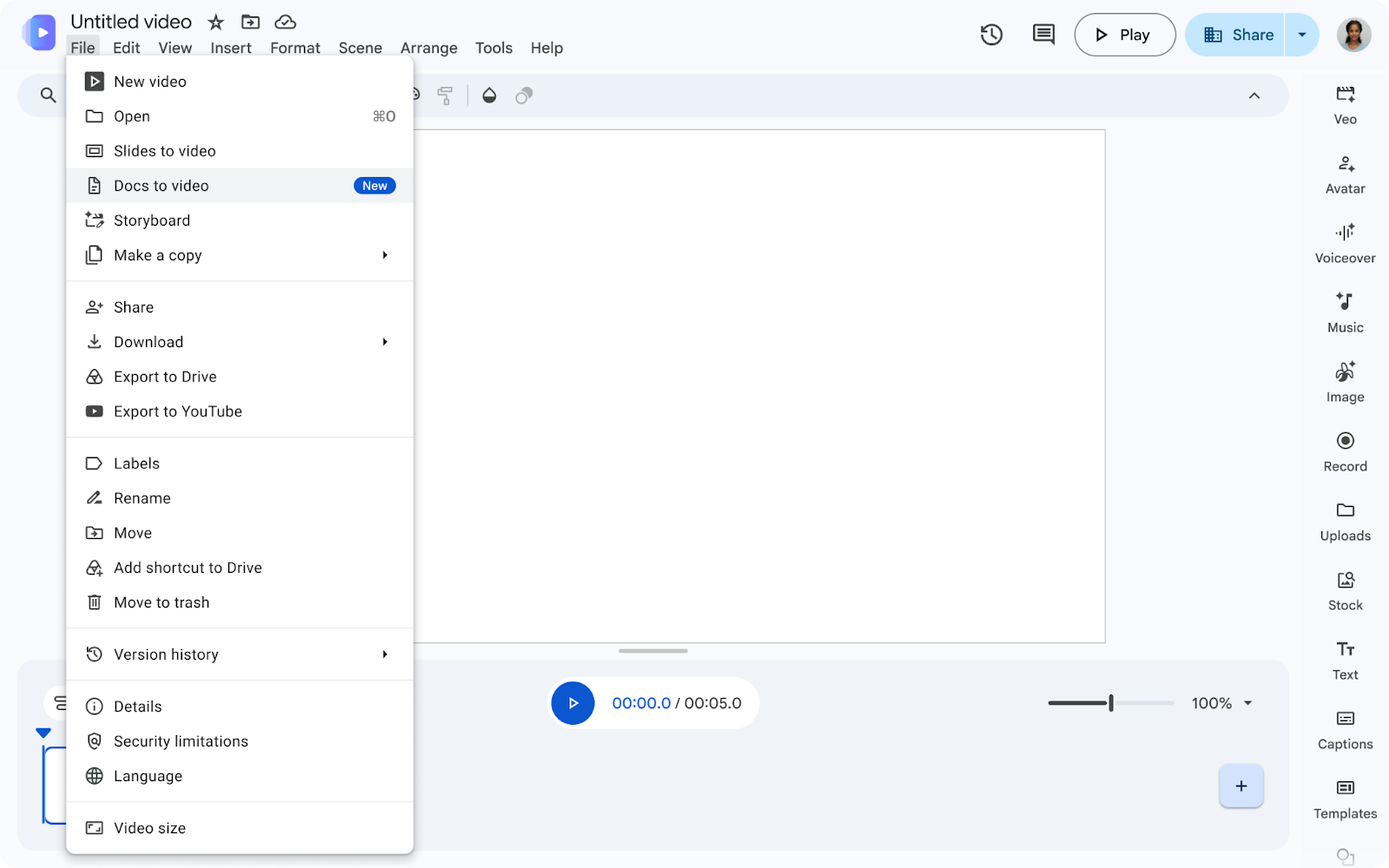
Google recently added the capability to turn nearly anything in your Google Drive into a video, from a doc to a presentation to multiple images. From short marketing videos to longer explainer videos, Google Vids and Gemini Notebook can help you create useful videos in minutes. You can use the Gemini app too, but you may as well start with Google Vids and see if it doesn’t do everything you need it to do first.
If you’re trying to create an explainer video for a technical topic with multiple sources, the fastest path to water is Gemini Notebook. Load in your sources (which can be web links, links to docs in Drive, and much more) and click “Video Overview” in the right sidebar to generate a cinematic, short, or explainer video. If you need to edit it, you can bring it into Google Vids to do so. While you could do the same thing in Google Vids, the Gemini Notebook path is faster and better for people who need to generate multiple videos on a timeline.
If you want to migrate to Google Workspace or upgrade your plan for users who you know will need more video and image generation, get in touch with UpCurve Cloud. We can help you maximize your AI use with Google and cut costs for third-party graphic & video editing tools.
Contact Us to Learn More about Transforming Your Business