
Most white-collar workers have repeatable documents they need to work on. It could be social media updates, responding to RFPs, press releases, or any number of things. While you can use Gemini to do all of these things, and it will do its best to create them based on context pulled from your Drive, you may need your templates to follow very specific instructions whenever you create anything.
This is where Skills come in. Skills are easier to create than Gems, which were the go-to before Skills were introduced and recently simplified. A skill can contain many steps to apply to a specific document or file type, and can be chained together if needed. For example, you may need to use a Brand Guidelines skill and a Press Release skill to write a press release according to brand guidelines.
Creating and Using a Skill
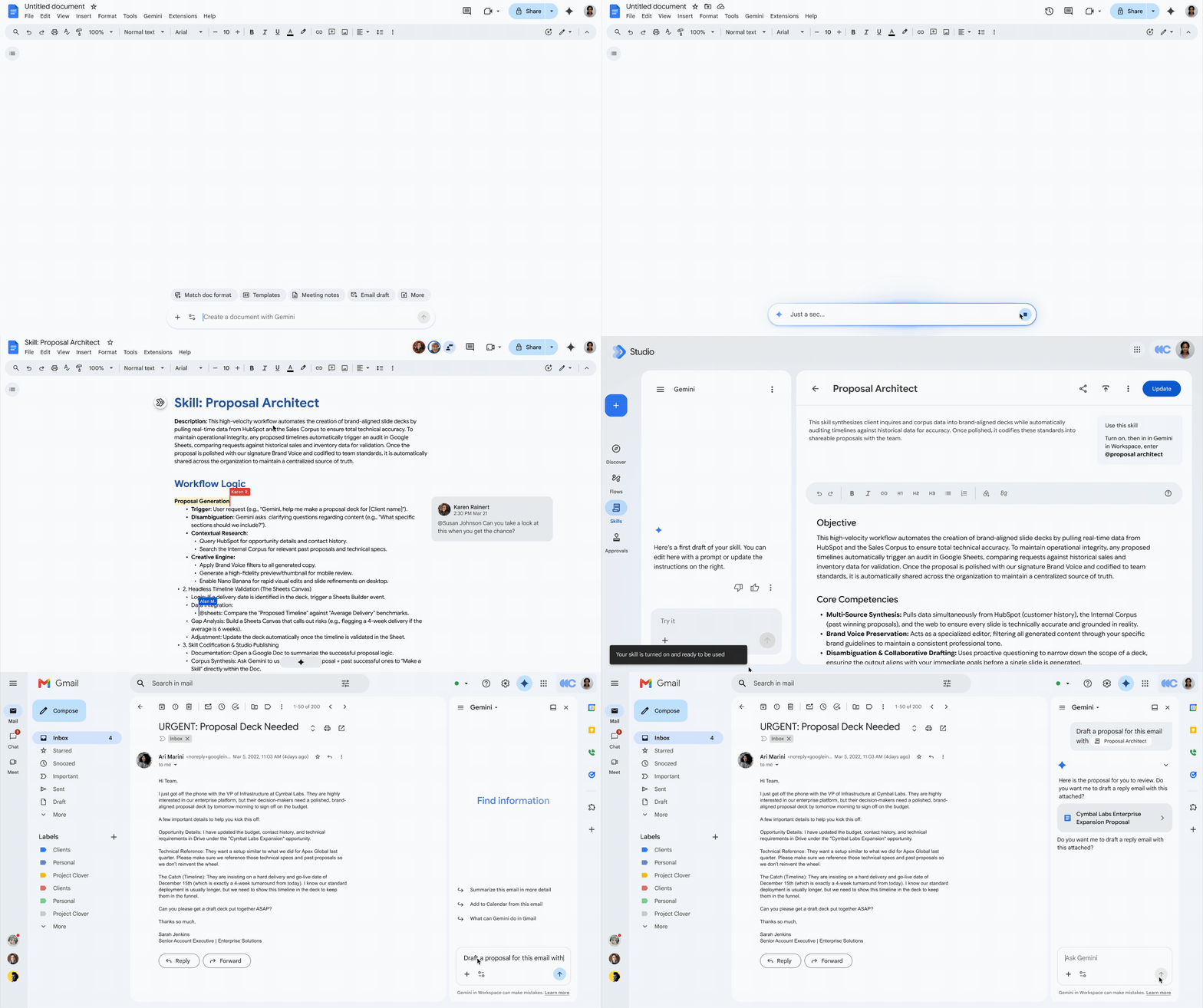
To create a skill, open up Google Workspace Studio. Click Skills on the left-hand menu. Then, you can either select a Skill template or create an entirely brand new one. If you are creating or editing a skill, use the toolbar at left to type in what you want the skill to do. You will then be able to either add it to the skill by typing Edit, or test your instruction by typing Test.
Once done, all you need to do to invoke and use your skill is type its name in the Gemini sidebar preceded by the @ symbol in any Workspace app such as Docs, Sheets, or Slides, just as you would do on Instagram or other social media channels to tag an account. You can pair it with the sources you want used, so your prompt could look like this:
Create a press release using the @pressrelease skill and the following website as a source: <link to site>.
To edit your skill at any time, open Google Workspace Studio, click on your desired skill, and change your instructions.
Note that as of fall 2026, the Gemini app is probably the best spot to do this as the Skills capability is rolled out across various apps. You can load it up at gemini.google.com in any browser. You also will not be able to call the skill from anywhere but the Gemini window in any file, so typing @SkillName directly into your doc will not properly reference the skill.
Using Multiple Skills in a Flow
There are situations where you may need to chain together various skills. For example, if youŕe managing social media for more than one brand, you may have to apply different guidelines to evaluate tone and style properly for each brand. While it is possible to include brand guidelines with each Social Media skill, itś a bit easier to separate these out into guidelines for various brands with one central skill for doing social media posts.
To chain Skills together, you can call them together. So, for your social media posts, you can type:
- Write a @SocialMedia post based on <link source> and apply @BrandXGuidelines to it.
You can also choose to first write the post and go back afterwards to apply the Brand Guidelines skill. This may give you more editing choices.
Sharing Skills With Co-Workers
You can share skills you create by signing into Google Workspace Studio, navigating to Skills, and selecting Share from the top right from within the skill. Enter the recipient email addresses in the dialog box or select Your Organization to share the skill company-wide. Note that recipients won't receive an email notification; they must locate the shared skill within the 'Shared with me' section of the 'Browse skills' area.
Additionally, be aware that if your administrator requires approval for such requests, the shared skill will remain inaccessible until they have granted permission. Admins; if you want to make sure everyone can share their skills, follow these steps in the Admin dashboard.
Managers and Administrators: Do All of the Above Safely With Security Controls
Google Workspace is expanding enterprise security controls to support custom, no-code AI agent automation in Workspace Studio Flows. These multi-layered protections allow IT administrators to safely enable and adopt advanced collaboration capabilities within their organization. By working with these controls, admins can confidently manage how AI agents interact with company data, ensuring productivity increases do not come at the expense of data security.
Key features of these expanded security controls include Agent access management, which lets admins view and suspend agents or target specific OAuth scopes (such as revoking Google Drive access) directly from the console. Additionally, Gemini data loss prevention (DLP) restricts AI access to Drive data based on content conditions and labels, while Studio data loss prevention (DLP) allows admins to block or enforce end-user review for Studio Flow executions based on data visibility and source conditions.
Google Workspace really does bring AI to everyone in a democratic, no-code way that lets all of your staff be AI superstars. If youŕe still working with a competitorś solution that can’t do nearly as much in the AI department, talk to us about migrating. UpCurve Cloud has encouraged our clients to be AI early adopters, and many of them are beating their competition as a result. Contact us today to get started.
Contact Us to Learn More about Transforming Your Business